
Profile & Preferences
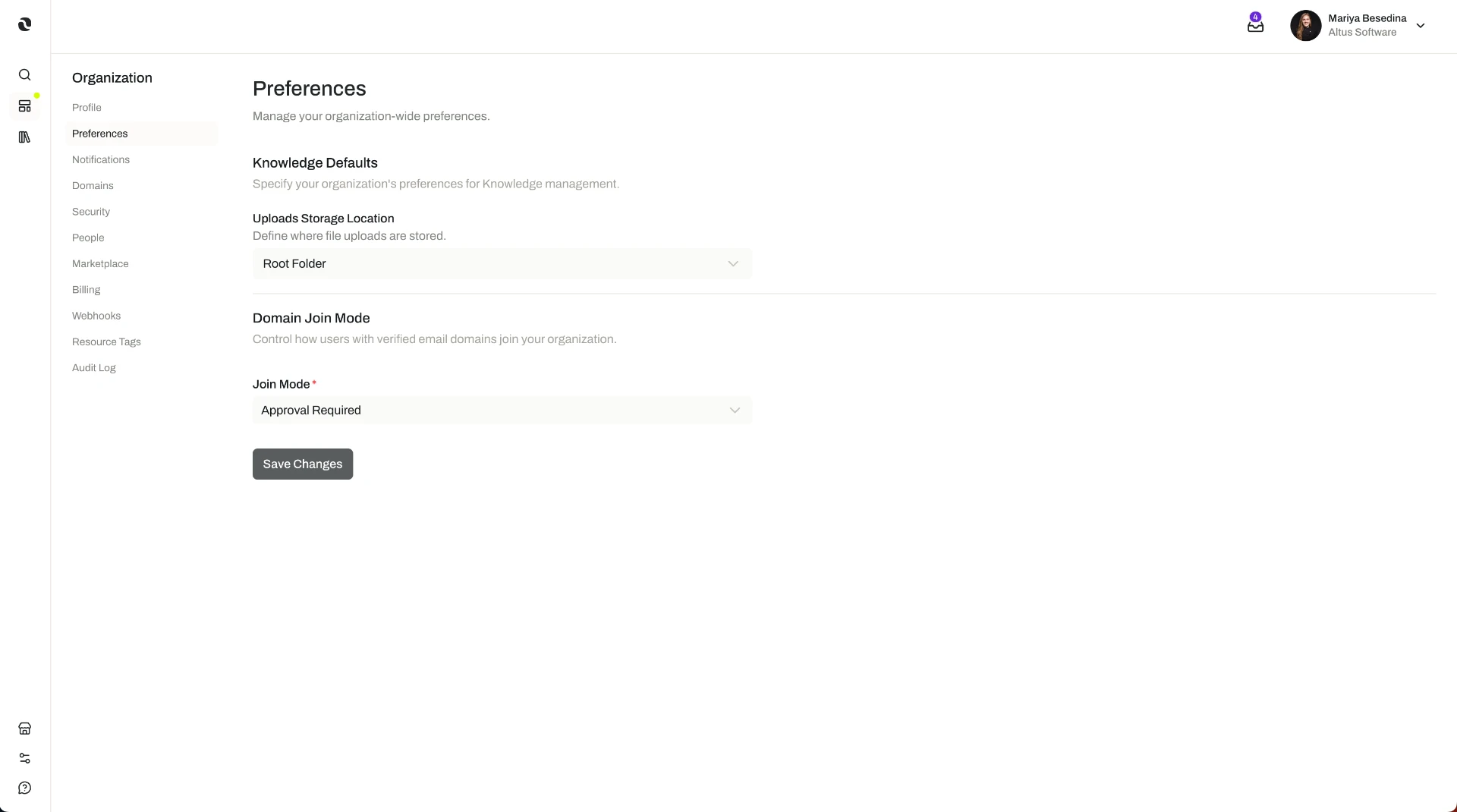
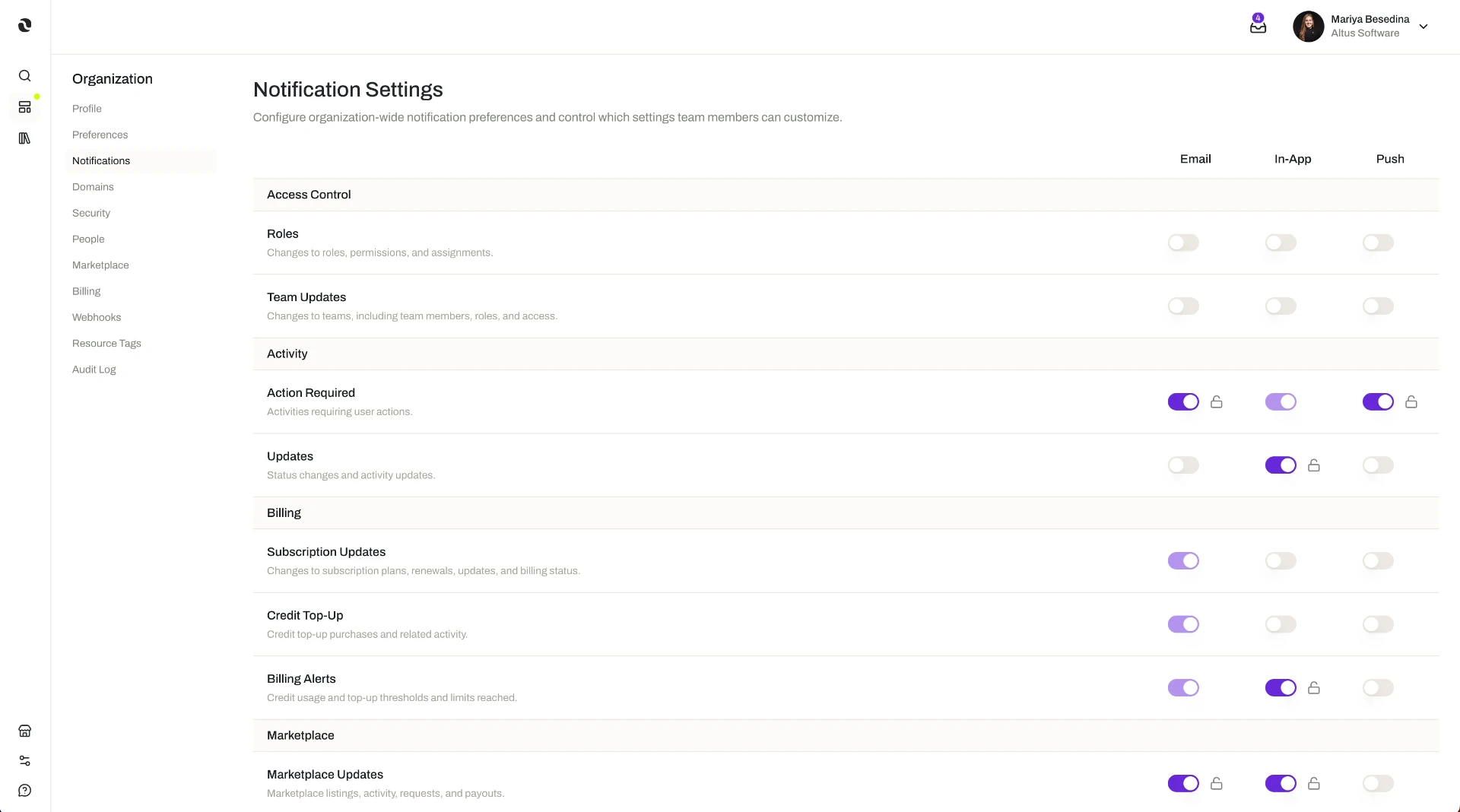
The organization profile and organization-wide preferences — including notification settings — that describe and shape the organization, all managed from Organization Settings.
Managing an organization's profile and preferences is an organization-level administrative action, so what you can view and change depends on your organization's plan and the role permissions you have been granted. The access model is documented in one place: Access & Permissions.
Overview
Every company on Opal has an organization — the top-level container that holds its members, teams, roles, resources, and organization-wide settings. Two settings describe that container itself:
- The organization profile holds the organization's identity details: its name and its logo.
- Organization preferences are the organization-wide settings that shape how Opal behaves for everyone who belongs to the organization, including notification settings.
Both are managed in Organization Settings — the central area where administrators control everything from the profile and preferences through to security, membership, billing, and credits.
This is small, one-time setup with a wide reach. Setting the profile is typically the first thing an administrator does when rolling Opal out to a company, before adding members, configuring security, or building out teams. Once it is in place, every member works inside an organization presented under its own name and logo, with preferences already set the way the company wants them.
Key Capabilities
- Set the organization's name. The name is part of the organization profile and identifies the organization in Opal.
- Set the organization's logo. The logo is the other half of the profile, giving the organization its own visual identity.
- Configure organization-wide preferences. Preferences are set once, at organization level, rather than per member.
- Manage notification settings. Notification settings are configured as part of the organization's preferences.
- Administer it alongside everything else. Profile and preferences sit in Organization Settings with security, membership, billing, and credits, so there is one place to go for organization administration.
How it Works
Everything is managed from Organization Settings. An organization's settings are managed from a central Organization Settings area, where administrators control the profile and preferences as well as security, membership, billing, and credits.
The profile is name and logo. An administrator sets the organization's name and its logo. Together these are the organization profile.
Preferences apply organization-wide. An administrator sets the organization's preferences, including its notification settings. Because these are organization-level settings, they apply to the organization as a whole rather than to one person's own setup.
Administrators do this work. Every member belongs to an organization, but its management capabilities are used primarily by people with administrative responsibility — organization owners and administrators, and the IT, security, finance, and operations staff who run the organization's presence on Opal.
Additional Notes
- Organization-wide, not personal. The profile and preferences described here belong to the organization. They are not an individual member's personal settings.
- Separate from your marketplace profile. The organization profile identifies your organization inside Opal. Your organization's public-facing presence on the Marketplace is a separate profile, set up for an audience outside the organization: Marketplace Profile.
- The rest of organization administration lives elsewhere. Members and joining, teams, roles, security, billing, credits, org-wide configuration, and auditing each have their own pages: Organization is the starting point for all of them.
- Short definitions of the terms used here are in one place: Glossary.
Related Features
- Organization — The starting point for organization-level administration and where each of the settings areas is introduced. Organization
- Members & Access — Who belongs to the organization and what they can do: members, teams, roles, and security. Members & Access
- Platform Configuration — The org-wide configuration options that go beyond profile and preferences, including resource tags, variables, and webhooks. Platform Configuration
- Marketplace Profile — Your organization's separate, public-facing presence on the Marketplace. Marketplace Profile
- Access & Permissions — The full access model behind plans, role permissions, and per-resource permissions. Access & Permissions