
Files & Folders
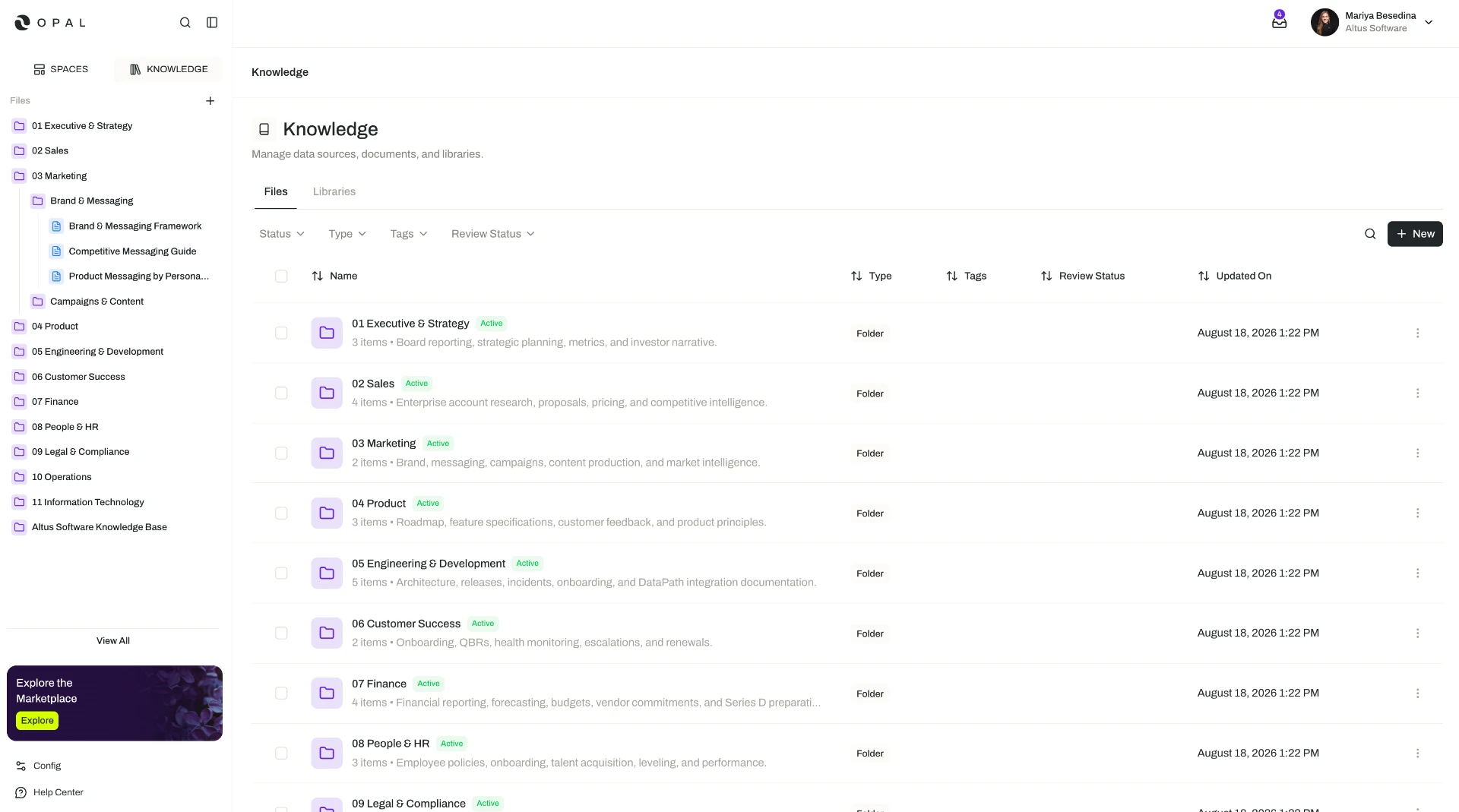
Files and folders are how content is added and organized in Knowledge, Opal's centralized knowledge base.
What you can add, move, rename, and archive in Knowledge depends on your organization's plan, the role permissions you have been granted, and the permissions set on the individual files and folders you are working with. Sharing a file or folder with other members or with teams relies on resource sharing and permissions, available on the Business and Enterprise plans. The access model is documented in one place: Access & Permissions.
Overview
Files and folders are how content is added and organized in Knowledge, Opal's centralized knowledge base. A file is a single piece of content — a document uploaded from your device, an image, a recording, or a document you write directly in Opal. A folder groups related files together. Together they form one centralized, file-system-like structure, so filling the knowledge base and finding your way around it works much the way it does anywhere else.
The familiar part is deliberate: there is nothing new to learn to get content in. What changes is what happens next. Because Knowledge is a source of truth that people and agents work from, the structure you build here is also the structure your digital workforce works from. A well-named folder of current procedures is what an agent retrieves when it runs a task at 3am. That is the sense in which Opal treats knowledge as operational infrastructure rather than a document archive — it is content that gets used, so it is worth keeping organized.
This page covers the hands-on side of that: getting content in, arranging it, and keeping it tidy as things change.
Key Capabilities
- Add content in two ways. Upload files straight from your device, or author brand-new documents inside Opal without leaving the knowledge base.
- Organize in a centralized structure. Create folders to group related files, and build a structure that reflects how your team actually thinks about its content.
- Have file types recognized for you. Opal automatically detects what kind of file has been added — document, image, audio, or video — and offers processing suited to it.
- Keep things current. Rename files and folders so names stay clear, and move them when content belongs somewhere else.
- Retire what is no longer in use. Archive files and folders that have been superseded, so the working knowledge base stays clean.
- Share with the right people. Share files and folders with individual members or with whole teams, each at a permission level (Business and Enterprise plans).
- Group content another way when a folder is not the right fit. Where related material serves one purpose but does not belong in a single branch of the structure, group it as a library instead — see Libraries.
How it Works
1. Create folders for the content you are about to add. Start with the shape of the thing you are documenting — a set of standard operating procedures, a product's reference material, a client's contracts — and create folders that match. Structure is easiest to maintain when its names match the words your team already uses for its work, because those are the names people will look for later.
2. Add the files. There are two ways to bring content in:
- Upload from your device — add existing files as they are.
- Author in Opal — write a new document directly in the knowledge base.
Uploading suits material that already exists elsewhere; authoring suits content that should live in Opal from the start, such as a procedure written for both colleagues and agents to follow.
- Opal detects the file type
- Processing options are offered for that type
- The file lands in the chosen folder
- Write a new document directly
- Saved as a draft until published
- No export-and-re-upload loop
3. Let Opal make the content usable. When a file is added, Opal detects its type — document, image, audio, or video — and offers the processing that fits, such as digitizing a scanned PDF into markdown or transcribing a recording. You do not have to prepare files before uploading them. What is available for each type is covered in File Processing.
4. Open, read, and edit in place. Each file opens in a viewer and editor suited to its format, with version history, permissions, and a draft-to-published workflow around it — so work in progress stays in draft until it has been reviewed. See Viewing & Editing Files.
5. Keep the structure tidy as things change. Three actions do most of the maintenance work:
- Rename a file or folder when its name no longer describes what is inside it.
- Move a file or folder when it belongs somewhere else in the structure.
- Archive a file or folder that has been superseded and is no longer part of the working knowledge base.
Doing this as you go matters more here than in an ordinary file store. People can work around a confusing folder name; a knowledge base that is used for grounding agent work benefits from being unambiguous about what is current.
6. Put the content to work. Files and folders reach agents through spaces: add them to a space, and the agents operating there can retrieve and use that content while working in threads, tasks, and flows. See Knowledge for Agents.
Additional Notes
- Supported formats. Document formats include PDF, DOCX, XLSX, PPTX, CSV, and MD. Uploaded files are also detected as images, audio, or video.
- Folders and libraries do different jobs. Folders are the centralized structure — a file sits in one place in it. A library is a standalone grouping that brings related files and folders together for a particular purpose, without reorganizing the structure itself. Use folders for where content lives, and libraries for pulling a set of it together.
- Naming is a shared decision, not a personal one. Because both colleagues and agents work from the same content, names and folder structure are worth agreeing on as a team. Consistent, plain names make content easier to find and easier to keep accurate.
- Publishing is what makes an edit visible to everyone else. A change can be saved as a draft or published directly; publishing is what makes that version the current one. This is covered in Viewing & Editing Files.
- Short definitions of the terms used here are in one place: Glossary.
Related Features
- Knowledge Overview — How the knowledge system fits together, and where files and folders sit within it. Knowledge Overview
- Libraries — Standalone groupings that bring related files and folders together for a particular purpose. Libraries
- File Processing — How Opal detects file types and turns raw uploads into content people and agents can use. File Processing
- Viewing & Editing Files — Reading and editing files in a format-specific interface, with version history and the publishing workflow. Viewing & Editing Files
- Knowledge for Agents — How agents retrieve files and folders as grounding context, and contribute documents back. Knowledge for Agents
- Access & Permissions — The full access model behind plans, role permissions, and per-resource permissions and sharing. Access & Permissions