
File Processing
File processing is what happens between the file is uploaded and the content is usable.
Uploading files into Knowledge and applying processing to them depends on your organization's plan, the role permissions you have been granted, and the permissions set on the file or folder you are working with. The access model is documented in one place: Access & Permissions.
Overview
File processing is what happens between the file is uploaded and the content is usable.
Plenty of valuable material arrives in a form nothing can read. A scanned contract is a picture of words. An hour-long recorded workshop is an audio file. A crucial chart is buried three pages into a slide deck. The information is there, but it is locked in its original format — hard to search, hard to quote, and of no use to an agent that needs to act on it.
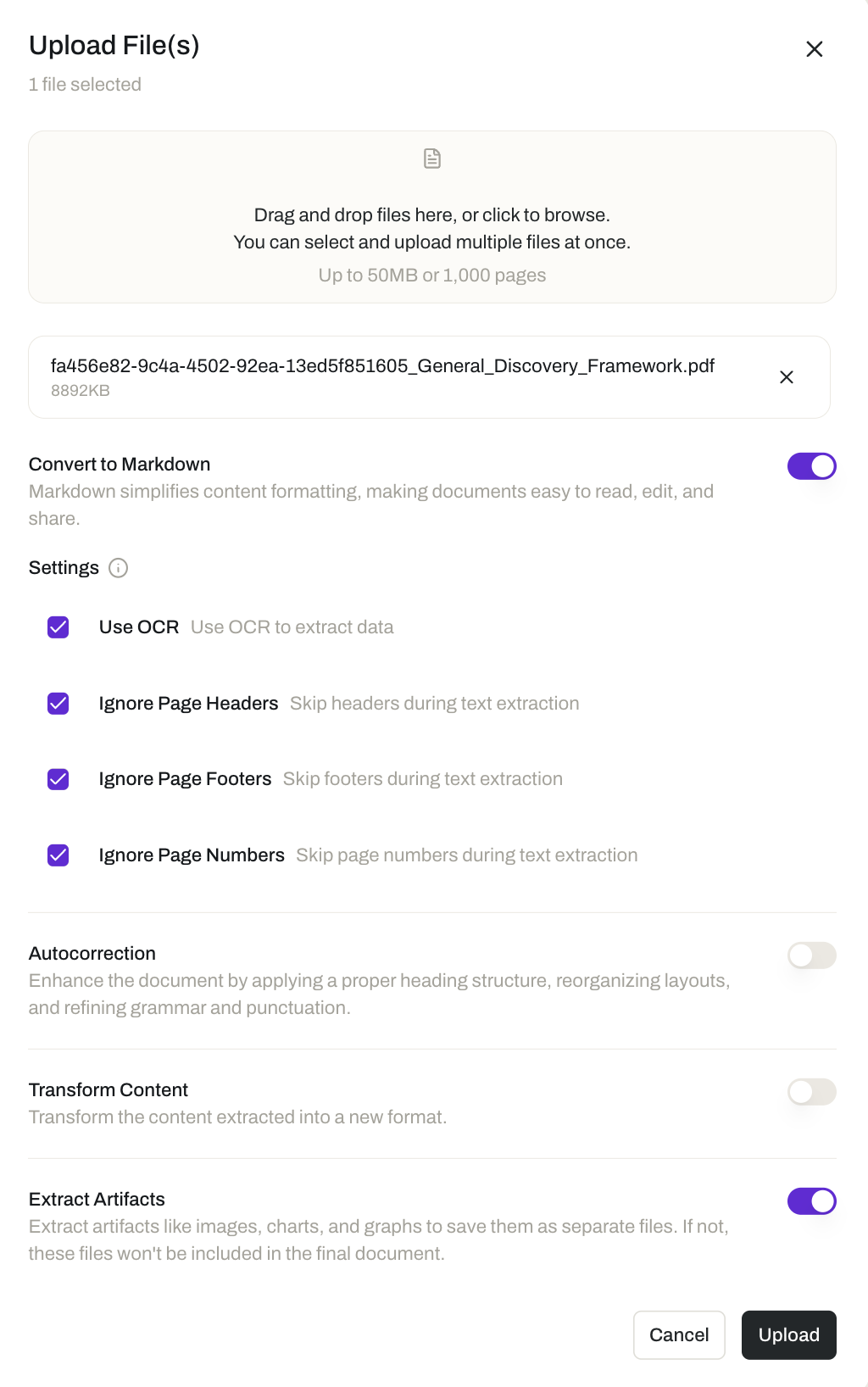
When a file is added to Knowledge, Opal automatically detects what kind of file it is — document, image, audio, or video — and offers processing suited to that type. A scan can be digitized into markdown. A recording can be transcribed, with each speaker identified. An artifact embedded inside a document can be pulled out into a file of its own. The result is content that people can read and search, and that agents can retrieve and act on.
That is the practical side of treating knowledge as operational infrastructure rather than an archive: a file only counts as knowledge once its contents can actually be used. Processing is the step that gets it there.
PDF, DOCX, XLSX, PPTX, CSV, and MD are all accommodated — including scanned PDFs, which are simply documents whose text is locked in an image. OCR digitizes scans into markdown, and embedded artifacts can be extracted into files of their own.
Transcription with speaker diarization, distinguishing who said what.
Transcription with speaker diarization, plus annotation of what's on screen.
Annotation and description, so visual content becomes searchable text.
Key Capabilities
- Automatic file-type detection. Opal identifies whether an uploaded file is a document, an image, audio, or video. You do not have to declare the type or prepare the file before uploading it.
- File-type-aware processing options. Because the type is known, the options offered are the ones that make sense for that file — you are not asked to transcribe a spreadsheet.
- OCR digitization to markdown. Turn scanned documents into markdown text, so their content is readable and searchable rather than trapped in an image.
- Content transformation. Transform content into a different form, suited to how it will be used.
- Image and video annotation. Add annotations to images and video.
- Audio and video transcription with speaker diarization. Produce a text transcript of a recording, with speaker diarization distinguishing who said what.
- Extraction of embedded artifacts. Pull an artifact embedded inside a file — an image in a report, for example — out into its own file, so it can be found, referenced, and used on its own.
How it Works
1. Add the file. Upload it from your device, or add it to a folder in the knowledge base as you normally would. Adding and organizing content is covered in Files & Folders.
2. Opal detects the file type. Documents, images, audio, and video are each recognized automatically, and the processing options offered are matched to what was detected.
3. Apply the processing that fits the file. A few common examples:
- A scanned PDF — digitize it into markdown with OCR, so the text can be read, searched, and quoted instead of sitting in an image.
- A recorded call or workshop — transcribe the audio or video, with speaker diarization separating each participant's contributions.
- A report with a chart inside it — extract the embedded artifact into its own file, so it can be used independently of the document it came from.
- An image of a page
- Not searchable
- Nothing for an agent to retrieve
- Headings, paragraphs, and tables preserved
- Searchable and editable in place
- Retrievable as grounding context
4. Review the result and publish it. Processed content is a starting point, not a final answer — a scan of a fifteen-year-old fax will digitize less cleanly than a crisp export. Open the file, check the output, correct anything that needs it, and publish the reviewed version so that is what everyone picks up. Reading, editing, version history, and the draft-to-published workflow are covered in Viewing & Editing Files.
5. Put the processed content to work. Add the file or its folder to a space, and the agents working there can retrieve and use it inside threads, tasks, and flows. Opal routes each retrieved file in the form the agent's model can actually use: if the model supports the file's format as a native input modality, the file is passed directly; if it does not, Opal supplies a text equivalent, such as the transcription, instead. See Knowledge for Agents and Models.
Additional Notes
- Supported formats. Document formats include PDF, DOCX, XLSX, PPTX, CSV, and MD. Uploaded files are also detected as images, audio, or video.
- Which options you see depends on the file. Processing is driven by the detected type, so the options available for a scanned document differ from those for a video.
- Processing does not bypass review. Processed output goes through the same draft-to-published workflow as anything else in Knowledge, so the version people and agents work from is one a person has reviewed.
- Transcription is what makes recordings usable everywhere. Not every model accepts audio or video natively. A transcribed recording is usable by any agent, whatever model it runs on, because a text equivalent is always available.
- Short definitions of the terms used here are in one place: Glossary.
Related Features
- Files & Folders — Adding content to the knowledge base and organizing it, which is where processing begins. Files & Folders
- Viewing & Editing Files — Reviewing and refining processed content in a format-specific interface, with version history and the publishing workflow. Viewing & Editing Files
- Knowledge for Agents — How processed content reaches agents as grounding context while they work in threads, tasks, and flows. Knowledge for Agents
- Models — The models that power agents, and the input modalities each one supports, which determine how a retrieved file is delivered. Models
- Knowledge Overview — How the knowledge system fits together, and where processing sits within it. Knowledge Overview
- Access & Permissions — The full access model behind plans, role permissions, and per-resource permissions. Access & Permissions