
Viewing & Editing Files
Day-to-day work in Knowledge: open a file, read it, correct what has gone out of date, and keep shared context accurate.
Whether you can view, edit, or publish a file in Knowledge depends on your organization's plan, the role permissions you have been granted, and the permissions set on that file — and, where the publishing workflow is turned on, on holding the permissions required to review and approve a new version. The access model is documented in one place: Access & Permissions.
Overview
Once content is in Knowledge, most of the work is day-to-day: opening a file, reading it, correcting the bit that has gone out of date, and making that correction official.
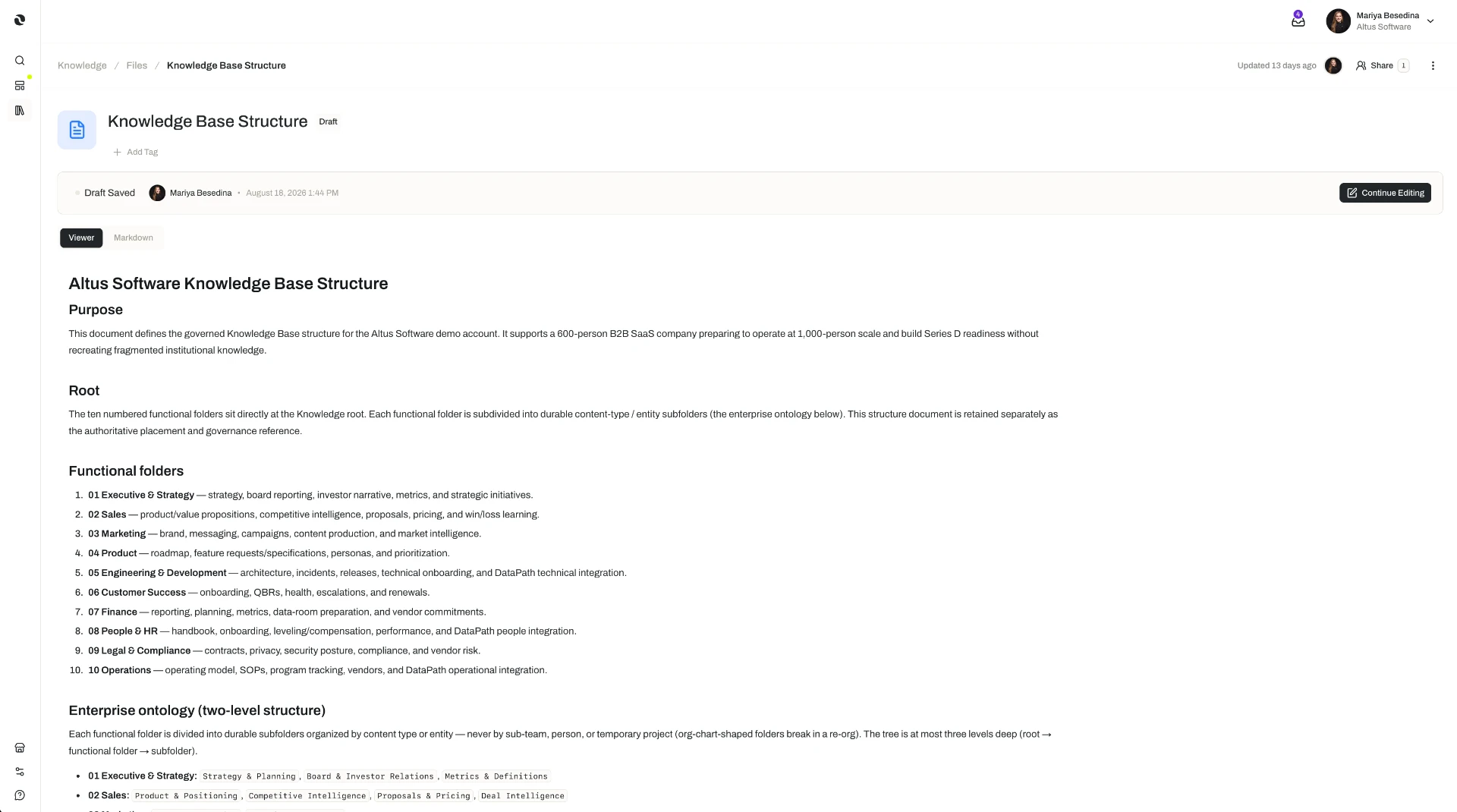
Files open inside Opal, in a viewer and editor tailored to the file's type — so a document, a spreadsheet, an image, and a recording each present in a form that suits them. There is no download-it, fix-it-elsewhere, upload-it-again round trip, and no second copy drifting away from the first.
Around that editing experience sit Opal's standard governance controls: version history, permissions, and a draft-to-published workflow. A change can be saved as a draft and published later, so live content stays stable while work is in progress. Every published version is kept and any of them can be restored, an activity log records what changed and who changed it, and — where the option is turned on — a new version has to be reviewed and approved before it can go live.
That last part matters more here than it would in an ordinary document store. Knowledge is a source of truth that people and agents work from, and agents retrieve the current published version. Publishing is the moment your edit becomes what a colleague reads on Tuesday and what an agent acts on when it runs a task at 3am.
Key Capabilities
- Read and edit in an interface built for the format. Each file opens in a viewer and editor tailored to its file type, so you work with content in a form that suits it.
- Edit without leaving Opal. Changes are made in place, in the knowledge base, rather than by exporting the file and re-uploading it.
- Draft-and-publish versioning. Save a change as a draft to keep work in progress separate from what is live, or publish it straight away — either way, publishing creates a new version.
- Version history. Every published version is kept, so a file's history is a record rather than a memory.
- Restore a previous version. Any earlier version can be restored as a new draft — you can go back without losing what came after.
- Optional review and approval. Where the publishing workflow is turned on, a new version cannot go live until a member with the required permissions reviews and approves it. Reviewers can examine the changes and give feedback or request changes first.
- An activity log. Actions and updates to a file are recorded, showing what changed and who changed it.
- Permissions on the file itself. A file can be shared with individual members or with whole teams, each at a permission level that determines what they can do with it (Business and Enterprise plans).
- Agents edit too. Agents can create new documents and edit existing ones as part of their work in threads, tasks, and flows — and their changes go through the same draft-to-published lifecycle as yours.
How it Works
1. Open the file. Select it in the knowledge base and it opens in the viewer and editor suited to its type. Reading is often all you came to do — and reading a published file changes nothing about it.
2. Save the change as a draft, or publish it straight away. If the file has no draft, you can either save your changes as one or publish them directly. If a draft already exists, you edit that draft and publish it when it is ready. A draft is where work sits while it is still work: the published version continues to be what everyone else — and every agent — picks up until you say otherwise.
3. Publish the new version. Publishing makes your change the current version of the file. From that point on it is what colleagues open and what agents retrieve while working.
4. Or send it through review first, if your organization requires it. Where the publishing workflow is turned on, any attempt to publish — directly or from a draft — has to be reviewed and approved by a member with the required permissions before it becomes the new published version. A reviewer can look through the changes and approve them, give feedback, or request changes before approving. It is the same idea as a second pair of eyes on anything that goes out — applied to the content your digital workforce relies on.
- It becomes what everyone works from
- The change is recorded in the activity log
- Feedback is attached to the review
- The published version stays untouched
5. Look back through version history when you need to. Version history holds the file's published versions, so you can see how a document arrived at its current state. If a change turns out to be wrong, restore the earlier version — it comes back as a new draft, which you then publish in the usual way. Nothing is overwritten and nothing is lost.
6. Check the activity log to see who did what. The log records the actions and updates made to the file, showing what changed and who changed it — useful when a document looks different from how you remember it, and when you need an auditable answer rather than a recollection.
Additional Notes
- Drafts are not visible as the live content. Publishing is what makes an edit the current version. Until then, the published version is what people and agents work from — which is why a half-finished revision cannot quietly become the source of truth.
- The publishing workflow is optional. Where it is turned on, a new version must be reviewed and approved before it goes live; where it is not, anyone with edit access publishes directly.
- Restoring moves you forward, not backward. A restored version arrives as a new draft rather than erasing the versions that came after it, so the history stays intact.
- Processed content is reviewed the same way. Output from OCR, transcription, and other processing is a starting point that goes through this same draft-to-published lifecycle. See File Processing.
- Agent-authored changes are governed, not automatic. When an agent drafts a document or an update, it enters the same lifecycle — so a person can review and publish it before it becomes what everyone else relies on. See Knowledge for Agents.
- Sharing a file relies on resource permissions. Sharing files with individual members or teams, each at a permission level, is available on the Business and Enterprise plans.
- Short definitions of the terms used here are in one place: Glossary.
Related Features
- Files & Folders — Adding content to the knowledge base, and renaming, moving, and archiving it as things change. Files & Folders
- File Processing — How Opal detects file types and turns raw uploads into content worth reviewing and publishing. File Processing
- Knowledge for Agents — How agents retrieve published content as grounding context, and contribute drafts and edits back. Knowledge for Agents
- Knowledge Overview — How the knowledge system fits together, and where viewing and editing sit within it. Knowledge Overview
- Access & Permissions — The full access model behind plans, role permissions, and per-resource permissions and sharing. Access & Permissions