
Roles & Permissions (RBAC)
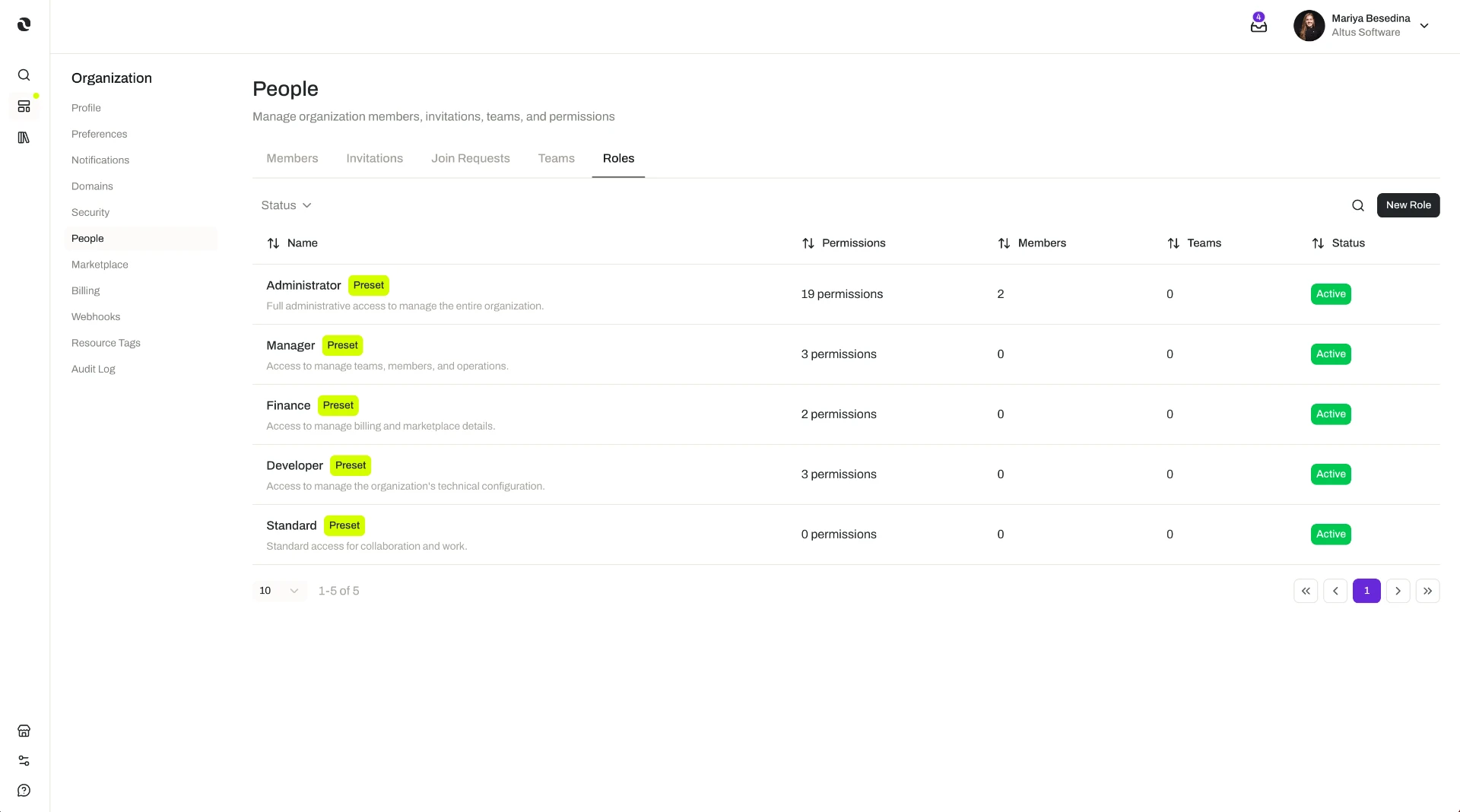
Preset roles Opal provides, custom roles your organization defines, and how either kind is assigned to an individual member or to an entire team to govern what they can do.
Creating custom roles and assigning roles to members or teams are high-privilege organization-level administrative actions, so what you can see and do depends on your organization's plan and the role permissions you have been granted. The access model is documented in one place: Access & Permissions.
Overview
A role is what determines what someone can do across your organization. Administrators assign a role to an individual member or to a whole team, and that assignment sets what the people who hold it are able to do. This is role-based access control (RBAC), and it is how Opal governs access at organization level.
There are two kinds of role:
- Preset roles. Platform-wide roles that Opal provides, available to every organization.
- Custom roles. Roles an organization defines for itself, for when the preset roles do not match the way it works.
Either kind can be assigned to a member or to a team, so you can grant access to one person or to an entire function in a single step.
Roles are managed in Organization Settings, the central area where administrators control the organization's profile and preferences, security, membership, teams and roles, billing, and credits — so deciding who belongs and deciding what they can do happen in the same place.
This matters more as an organization grows. Roles are the organization-level part of how Opal governs access: one place to state what each group of people is allowed to do, rather than a scatter of individual decisions no one can reconstruct later.
RBAC is one of three things that decide whether an action is available: your organization's plan, the role permissions you have been granted, and the permissions on the individual resource you are working with. This page covers the role part. The full model is documented once, on Access & Permissions.
Key Capabilities
- Assign preset roles. Use the platform-wide roles Opal provides, with no setup required.
- Create custom roles. Define your own roles when the preset ones do not fit how your organization works.
- Assign a role to a member. Grant an individual the access a role provides.
- Assign a role to a team. Grant a whole team the access a role provides, so its members receive it as a group.
- Administer roles alongside everything else. Roles sit in Organization Settings with members, teams, security, billing, and credits, so organization administration has one home.
How it Works
Roles are administered from Organization Settings. An organization's settings are managed from one central area, and roles sit there next to members and teams — the people you are granting access to.
Start with the preset roles. Opal provides preset roles platform-wide. They are available to every organization and need no configuration, so for many organizations they are the whole answer: pick the role that matches what a person or team is there to do, and assign it.
Define custom roles when the presets do not fit. Organizations differ, and where a preset role is not the right shape for a particular group, an administrator can define a custom role instead. Custom roles belong to your organization and are assigned exactly like preset roles.
Assign to a member, or to a team. A role can be assigned to an individual member or to an entire team. Assigning to a member is the precise option — useful for a role only one or two people should hold. Assigning to a team is the scalable one: the team's members receive that access as a group, so you configure the access for a function once instead of person by person. Because teams can contain nested child teams, you can assign a role to the specific group it belongs to — a department, or one function inside it — rather than working from a flat list of names. How teams are created and structured is covered by Teams, and how people become members in the first place by Members.
Roles are not the same as per-resource permissions. A role governs what someone can do across the organization. Separately, an individual resource — an agent, a skill, a flow, and so on — can be shared with specific members or with teams, and each is granted a permission level that determines what they can do with that one resource. The permission levels available differ from one resource type to another, and resource sharing and permissions are available on the Business and Enterprise plans. In practice you use both: roles to establish what each group does day to day, resource sharing to control access to a particular thing.
Roles are not the same as plan gating either. Some capabilities depend on the organization's subscription plan, so a role cannot grant access to something the plan does not include. Where the two interact is set out on the canonical access page: Access & Permissions.
Role changes leave a record. Organization activity is captured in an audit log that shows what changed and who changed it, which is what makes an access review possible after the fact rather than only at the moment of assignment. See Audit Log.
- Access applies to that member only
- Changes follow the person
- Every team member receives the access as a group
- Joining the team inherits the role
- Leaving the team revokes it
Additional Notes
- This page explains how roles work, not which roles exist. The preset roles available to your organization, and any custom roles it has defined, are listed in the roles area of Organization Settings — that is the accurate source for what is currently in place.
- Prefer team assignments to individual ones. People move between functions constantly. When roles are attached to teams, keeping access correct is a matter of changing who is on which team, rather than revisiting individual grants one at a time.
- Roles and resource sharing are two different mechanisms. A role sets what a member or team can do across the organization; sharing a resource sets what they can do with that one resource, at a permission level that varies by resource type (Business and Enterprise plans). Both can point at the same member or team.
- Being able to sign in is not the same as being allowed to act. Authentication requirements such as enforced multi-factor authentication and single sign-on are organization security settings, covered by Security. Roles decide what a member can do once they are in.
- Short definitions of the terms used here are in one place: Glossary.
Related Features
- Members & Access — The cluster this page belongs to: members, teams, roles, and security in one place. Members & Access
- Members — The people you assign roles to, and how they join the organization. Members
- Teams — Group members into teams and nested child teams, so a role can be assigned to a function rather than to individuals. Teams
- Security — The organization's security settings and controls, including how members authenticate. Security
- Access & Permissions — The full access model behind plans, role permissions, and per-resource permissions. Access & Permissions
- Audit Log — The record of organization activity, used to review how access has been granted and changed. Audit Log