
Teams
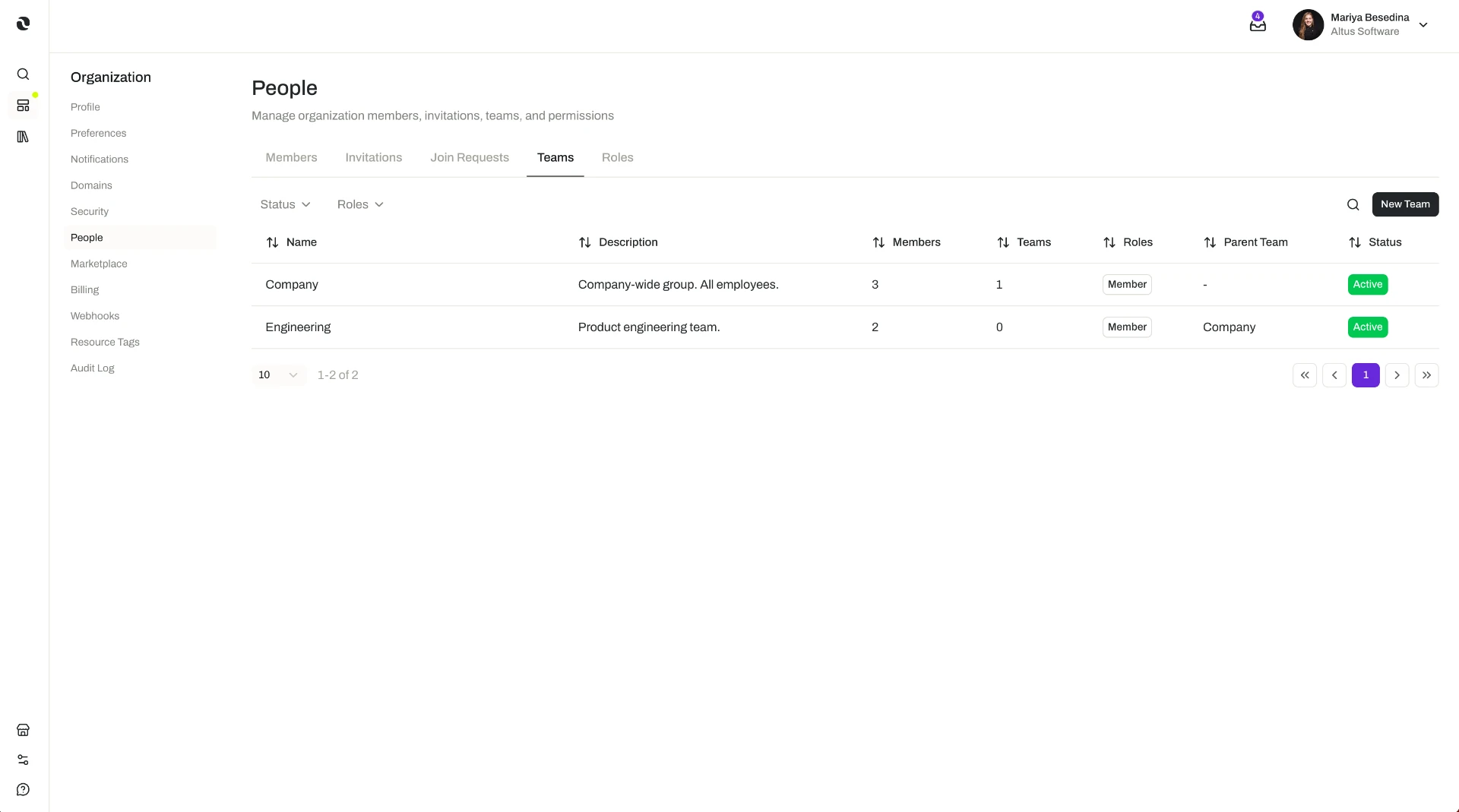
Group members into nested teams that mirror your organization, then assign roles and share resources with those teams in one place.
Creating teams, changing who belongs to them, and sharing resources with them are organization-level administrative actions, so what you can see and do depends on your organization's plan and the role permissions you have been granted. Sharing a resource with a team relies on resource sharing and permissions, which are available on the Business and Enterprise plans. The access model is documented in one place: Access & Permissions.
Overview
A team is a group of members within your organization — a way to organize people, and a unit you can hand access to. Teams can contain nested child teams, so a structure can go beyond a flat list of names: a team per department, with child teams for the functions inside it.
Membership puts a person in the organization. Teams decide how those people are grouped. That grouping is useful for two practical reasons:
- Roles can be assigned to a team, not just to a person. Administrators assign preset or custom roles to individual members or to whole teams, so a team gets exactly the access its work calls for.
- Resources can be shared with a team. A resource can be shared with individual members or with an entire team, each granted a permission level that determines what they can do with it (available on the Business and Enterprise plans).
That is the value of putting structure in place: instead of granting access one person at a time and repeating it for every new joiner, you describe the organization once — departments, and the functions within them — and grant access to those groups.
Teams are managed in Organization Settings, the central area where administrators control the organization's profile and preferences, security, membership, teams and roles, billing, and credits.
Key Capabilities
- Create teams. Group members into teams that reflect how the organization is actually structured.
- Nest child teams. Create child teams inside a team, so a department can hold the functions within it.
- Add and remove members. Manage which members belong to each team as people join, move, and leave.
- Assign roles to a team. Assign a platform-wide preset role or a custom role to a team, so its members receive that access as a group.
- Share resources with a team. Share a resource with an entire team and grant it a permission level, rather than sharing with each member individually (Business and Enterprise plans).
How it Works
Teams live in Organization Settings. An organization's settings are managed from one central area, and teams sit there alongside members, roles, security, billing, and credits — so structuring people and granting them access happen in the same place.
Shape the teams around the organization. Create a team for each real group of people — most often a department — and add child teams for the specific functions inside it. For example, a Marketing team with child teams for content, campaigns, and design. The aim is a structure someone in the company would recognize, because everything you attach to it afterwards follows that shape.
Add and remove members. A team is made up of the organization's members, and administrators add members to a team and remove them again as circumstances change: a new hire is added to their department's team; someone who moves internally is removed from one team and added to another. How people become members of the organization in the first place is covered by Members.
Assign the roles the team needs. Access across the organization is governed by role-based access control (RBAC): administrators assign platform-wide preset roles or custom roles to individual members or to teams. Assigning a role to a team means its members receive that access as a group, so you configure the access for the function once instead of member by member. What the roles are, and what each one permits, is covered by Roles & Permissions (RBAC).
Share resources with the team. Separately from roles, an individual resource can be shared with a team. When you share it, the team is granted a permission level that determines what its members can do with that resource; the permission levels available differ from one resource type to another. Resource sharing and permissions are available on the Business and Enterprise plans.
Additional Notes
- Teams are how you group people; spaces are where work happens. A team is an organization-level grouping of members used to organize people and assign access. A space is the operational environment where people and agents actually do the work, with its own set of people invited to it. The two are related in practice — a team's structure often mirrors the spaces it works in — but they are configured separately: Spaces.
- Structure keeps access maintainable. People move between functions constantly. When access is attached to teams, keeping it correct is a matter of changing who is on which team, rather than revisiting every individual grant.
- Roles and resource sharing are two different mechanisms. A role sets what a team can do across the organization; sharing a resource with a team sets what it can do with that one resource. Both can point at a team, and the full model behind them is documented once, in Access & Permissions.
- Short definitions of the terms used here are in one place: Glossary.
Related Features
- Members & Access — The cluster this page belongs to: members, teams, roles, and security in one place. Members & Access
- Members — The people you organize into teams, and the two routes by which they join the organization. Members
- Roles & Permissions (RBAC) — Preset and custom roles, and how they are assigned to members and teams. Roles & Permissions (RBAC)
- Security — The organization's security settings and controls, which apply across all members. Security
- Spaces — The operational environments where people and agents do the work a team is organized around. Spaces
- Access & Permissions — The full access model behind plans, role permissions, and per-resource permissions. Access & Permissions