
Tasks
A task is a unit of work you hand to an agent to run on its own — you describe the outcome, and the agent carries it out.
A task belongs to a space, so you need access to that space to create, run, or manage one, and the permission level you hold there — Manage, Access, or View — sets what you can do. Bringing colleagues in to share the task's space and resources relies on resource sharing and permissions, available on the Business and Enterprise plans. The access model is documented in one place: Access & Permissions.
Overview
A task is a unit of work you hand to an agent to run on its own. It carries its own instructions, so nobody has to sit in a conversation and direct it — you describe the work once, decide when it should start, and the agent takes it from there.
That "when it should start" is the part worth pausing on, because it is what makes a task flexible. The same task can be run once, by hand or at a chosen moment in the future, or it can be set to run again and again on a cadence you define, or to start when another system says so. Nothing about the work itself changes between those options; only the trigger does.
So a task is a good fit whenever work should happen dependably without a person driving it:
- The competitor summary someone has to remember to write every Monday.
- The campaign check that ought to run every few hours while a launch is live.
- The record clean-up that should begin the moment a new deal lands in your CRM.
Threads and flows cover the other shapes of work: a thread is for work you want to direct live as it unfolds, and a flow is for a multi-step process that runs in sequence across several people and agents. A task is the one that runs quietly in the background.
You still get to keep a hand on the wheel. A task can be checked by an agent reviewer, by a person, or by both before its output is treated as done — and every execution is recorded, so unattended does not mean unaccounted for.
Key Capabilities
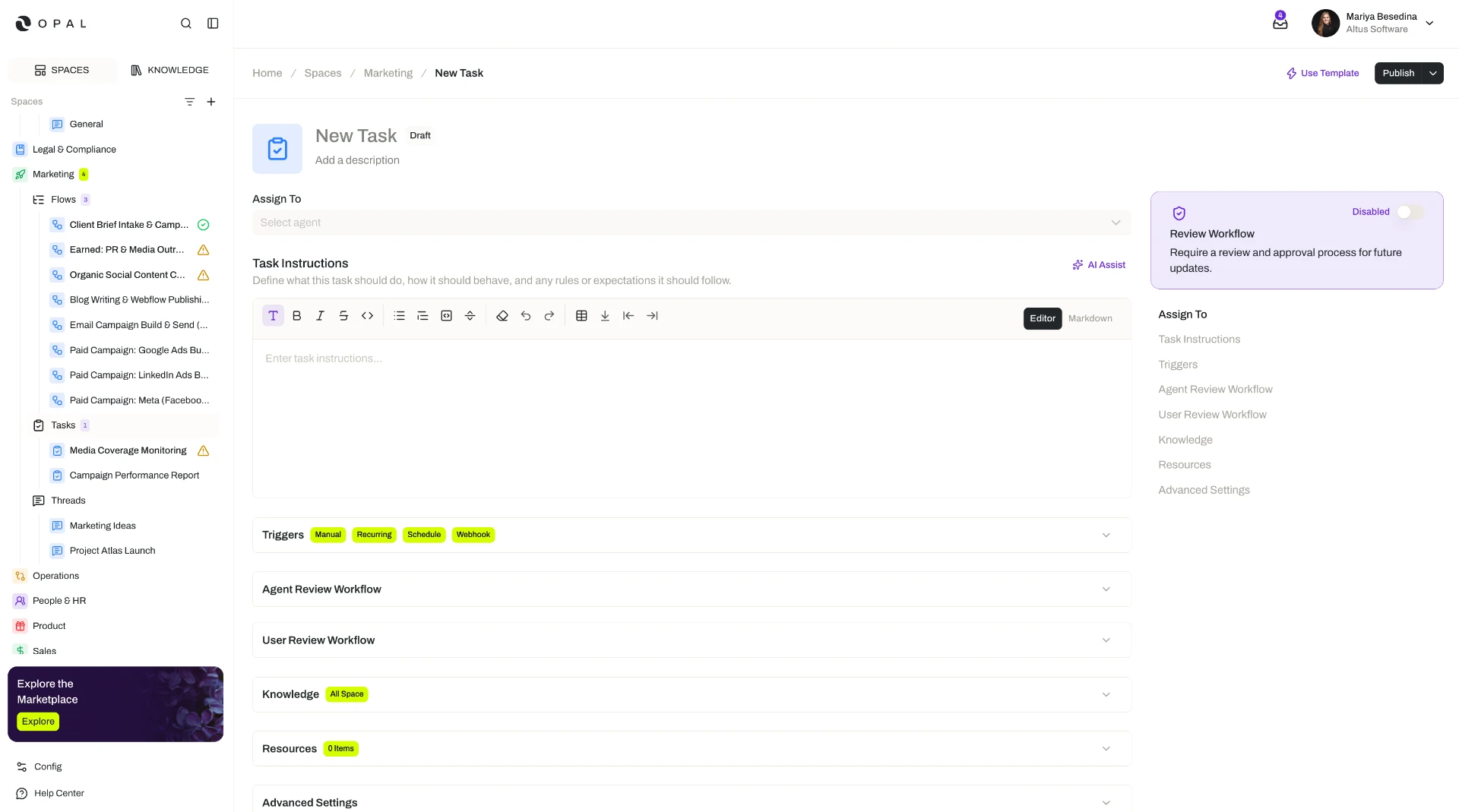
- Hand a unit of work to an agent. Assign the task to an agent and give it instructions describing what to execute.
- Add an agent reviewer. Optionally have a second agent check the work, following its own review instructions.
- Add a user reviewer. Optionally keep a person in the loop, with their own review instructions.
- Run it once, on demand. Trigger the task manually whenever you want it to run.
- Run it once, later. Schedule it for a specific date and time, or after a relative amount of time.
- Run it on a cadence. Set a recurring trigger — for example every 15 minutes, daily, or weekly.
- Run it on an event. Use an incoming webhook so an external system can start the task.
- Let the task ask for what it needs. With Request Input, the agent can pause mid-run to request more information.
- Start from the right context. A task can already draw on its space's knowledge and resources and on those of its assigned agent, and you can attach more just for that task.
- Get better with use. With Continuous Learning, lessons from successful runs are captured so later runs improve.
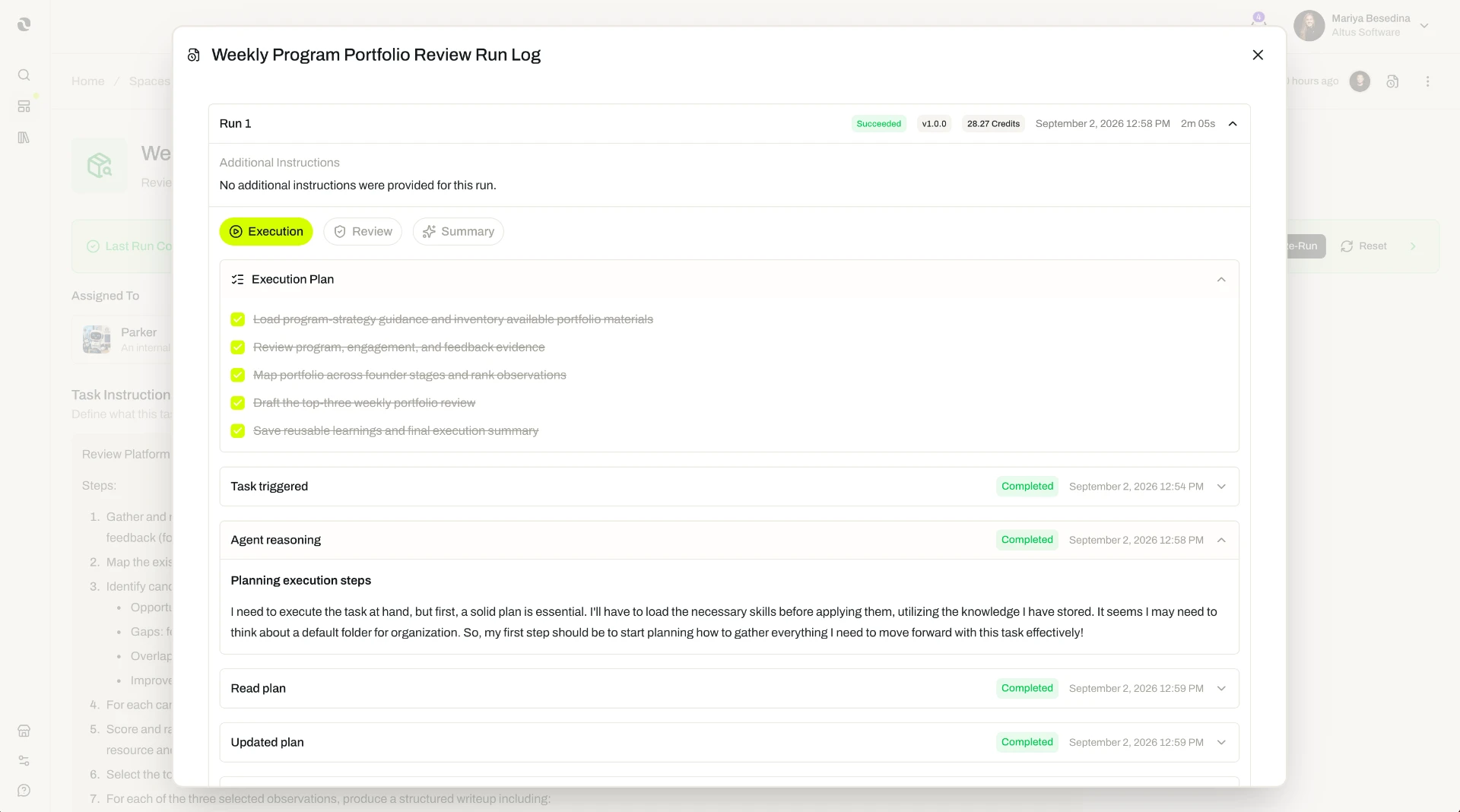
- See every execution. A Run Log records each run of the task.
How it Works
Assign the task to an agent and describe the work. Setting up a task starts with two decisions: which agent should do it, and what exactly it should do. The instructions you write stay with the task, so the agent is briefed identically on the first run and the fiftieth.
Decide whether the work should be checked. Reviewers are optional, and you can add one, both, or neither:
- An agent reviewer checks the output automatically, following review instructions you write for it — useful when you want a second pass on every run without asking a colleague for one.
- A user reviewer puts a person in the loop, again with their own review instructions — useful when the output carries judgment, risk, or a name on it.
Choose the trigger. This is where you decide whether the task is a one-off or an ongoing piece of the operation. There are four options:
| Trigger | When it runs | Typical use |
|---|---|---|
| Manual | When you start it yourself | A one-off run you want to kick off by hand |
| Schedule | Once, at a specific date and time — or after a relative amount of time, such as in four hours | Work that should happen once, later |
| Recurring | Repeatedly, on a cadence you set — for example every 15 minutes, daily, or weekly | Monitoring, reporting, and anything with a rhythm |
| Webhook | Whenever an external system calls it | Event-driven work that should start the moment something happens elsewhere |
For the webhook option, Opal generates an endpoint secured with a secret token, and the external system calls that endpoint to run the task.
Whenever someone starts it
Ad-hoc work you want repeatable
At a specific date and time
A one-off run booked in advance
On a cadence — daily, weekly, monthly
Standing reports and routine checks
When an external system calls in
Work triggered by another system's event
Give the task anything extra it needs. By default a task can use the resources available in its space and the resources attached to the agent or agents assigned to it, which covers most work without further setup. When one particular task needs more, attach it directly to the task: knowledge, skills, connectors, tools, and input and output guardrails.
Let it pause for input, and learn as it goes. Two optional behaviors work here just as they do in flows. Request Input lets the agent stop and ask for information it needs to finish the work, rather than guessing. Continuous Learning captures lessons from successful runs, so a task that runs every week is not starting from the same standing position every week.
Follow the runs. Every execution is written to the task's Run Log, and tasks operate under Opal's standard governance controls. Whether the task ran because you clicked a button, because it was Monday, or because another system called it, the record looks the same.
Additional Notes
- One-off and repeating runs are the same task. The agent, instructions, reviewers, and resources are configured once; the trigger alone decides whether the work happens on demand, once at a chosen time, on a cadence, or on an external event. A task you have been running by hand can be put on a schedule without being rebuilt.
- Size the oversight to the work. A low-stakes task can run with no reviewer at all. Where accuracy matters more, an agent reviewer adds a check on every run; where accountability matters, a user reviewer keeps a named person in the loop. The point of a task is that nobody has to run the work — not that nobody sees it.
- Treat the webhook token as a credential. The endpoint generated for a webhook trigger is secured with a secret token. Share it with an external system the same way you would share any other credential.
- Reuse a setup that works. When the same unit of work needs to be set up repeatedly, a task template packages the instructions, assignment, reviewers, recommended trigger, and resources into a reusable starting point. Tasks created from a template stay linked to it, and you choose when to sync them with the template's latest version.
- Thread, task, or flow? Direct the work live in a thread. Let it run on its own as a task. Carry it through a defined sequence of steps, with assignees and review along the way, in a flow.
Related Features
- Spaces — The operational environment a task lives in, providing its access control and the shared knowledge and resources it draws on by default. Spaces
- Threads — Real-time conversations between people and agents, for work you want to direct as it happens rather than set up to run on its own. Threads
- Flows — Multi-step workflows that carry a process from start to finish, each step with an assignee and optional review, where a task handles a single unit of work. Flows
- Agents — The digital workers assigned to execute a task, and to review its output. Agents
- Task Templates — Reusable starting points for creating tasks, so a proven unit of work can be standardized and used again across the organization. Task Templates
- Access & Permissions — The full access model behind plans, role permissions, and the permission levels granted in a space. Access & Permissions