
Widgets
A widget is an interactive interface an agent can present inside a thread — a form, a set of controls, or a structured layout.
Creating widgets and attaching them to agents depends on your organization's plan, the role permissions you have been granted, and the permissions set on the individual widget. Sharing a widget with other people relies on resource sharing and permissions, available on the Business and Enterprise plans. The access model is documented in one place: Access & Permissions.
Overview
A widget is an interactive interface element an agent can present inside a thread — a form, a set of controls, a structured layout — so its response is something you can take in at a glance and act on right there.
Most agent responses arrive as text, and for explaining something, text is exactly right. It works less well when the reply is really a set of structured details, or when the agent needs specific information back from you and a paragraph of prose is a clumsy way to ask for it. A widget solves both halves of that problem:
- Structured output — information presented in a rich, organized layout instead of a wall of text, so it is easier to read and understand.
- Structured input — a working interface, with elements such as input fields and buttons, that captures what you provide in a consistent shape.
Because interacting with a widget can also invoke agent actions — such as tool calls — the agent's message stops being something you read and then act on somewhere else. It becomes the place where the next step actually happens.
Widgets are attached to agents, in the same way skills, connectors, and tools are: they are part of how you shape what an agent brings to the work.
- Prose paragraphs
- Details buried in the sentence
- Next step happens outside the thread
- Labelled fields and clear layout
- Inputs for the details that matter
- Buttons that act in place
Key Capabilities
- Present information in a structured layout. Show an agent's output in a rich, organized format rather than a text-only response.
- Collect input in the response itself. Turn a message into a working interface with input fields and buttons, so people supply information without switching to another tool.
- Preview content in place. Use a widget to show content back to the reader as part of the response.
- Trigger agent actions from the widget. An interaction — clicking a button, for example — can invoke agent actions such as tool calls, directly from within the response.
- Assemble widgets from a component library. Build new widgets from a library of interface components in the Widgets section.
- Generate a widget from a plain-language description. Describe the widget you want and AI Assist generates its editable code and schema for you, so you are refining a working starting point rather than building from scratch.
- Carry widgets on agent templates. Attach a widget to an agent template so every agent created from it presents work the same way.
- Keep the exchange in the thread. Reading output, providing input, and triggering actions all happen where the conversation is already taking place.
How it Works
1. Create the widget in the Widgets section. Widgets are built in their own section of the platform, drawing on a library of interface components.
2. Describe what you want, and let AI Assist draft it. Explain the widget in plain language — for example, an intake form for a feature idea, or a summary card for a set of results. AI Assist generates the editable code and its schema automatically.
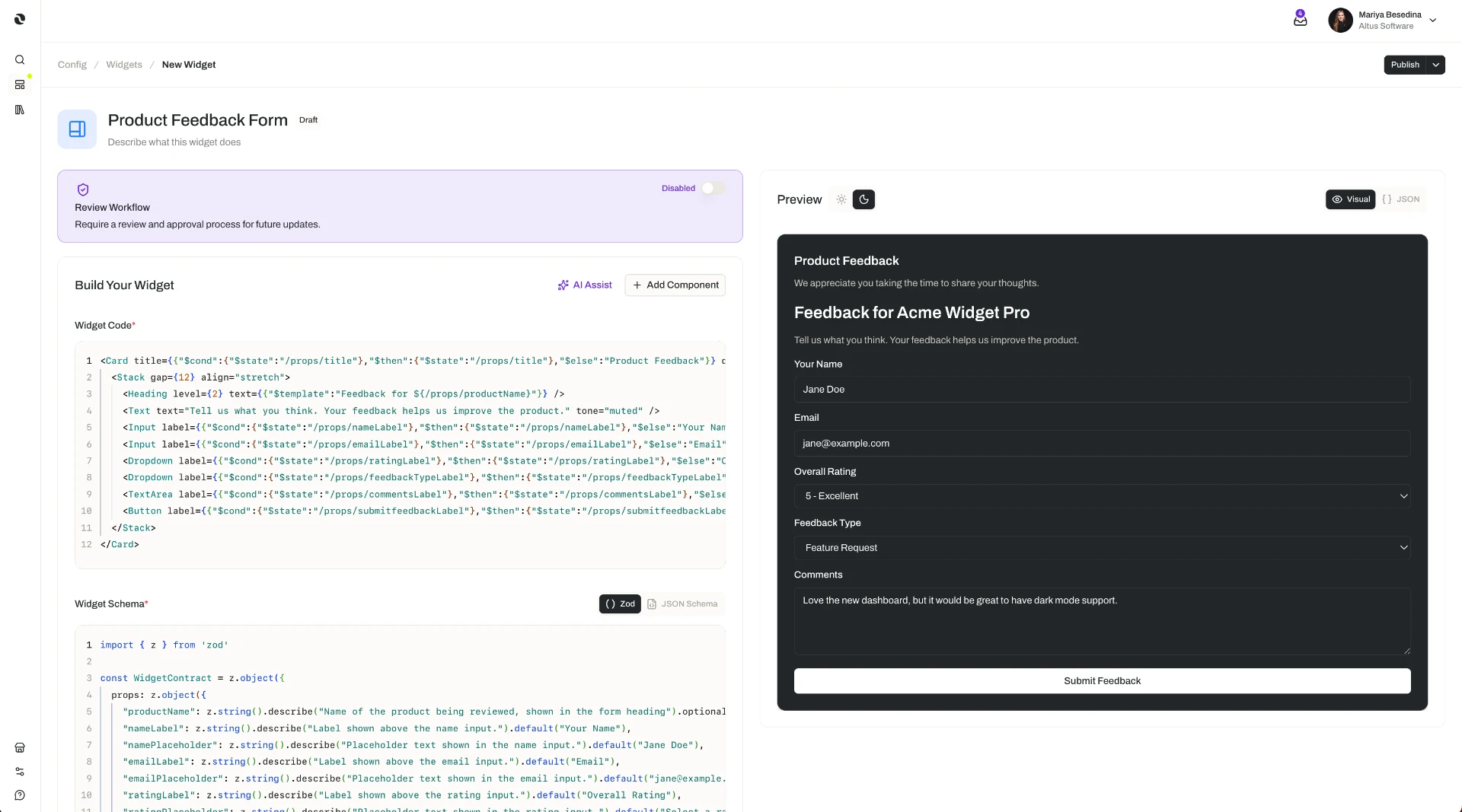
3. Refine it until it fits. What AI Assist produces is a starting point you can edit, not a finished artifact you have to accept as-is. Adjust it until it captures exactly the fields and controls the work needs.
4. Attach it to an agent. A widget has no effect until it is attached. Attaching it to an agent makes it part of what that agent can present, alongside its skills, connectors, and tools. See Agents.
5. Or attach it to an agent template. Agents created from that template carry the same widgets, so a whole set of agents presents information and gathers input in a consistent way. See Agent Templates.
6. The agent embeds it in a thread. When the moment calls for it, the agent includes the widget directly in a thread as part of a message. See Threads.
7. People interact with it where the work is happening. Readers take in the structured output, fill in fields, and press buttons — invoking agent actions such as tool calls without leaving the conversation.
Additional Notes
- Widgets live in threads. A widget is embedded in a thread as a message — so a widget is the right choice for work people are involved in conversationally, and not a way to add an interface to work that runs elsewhere.
- One widget can do both jobs. The same widget can present an agent's output and collect input on it. Design for the whole exchange rather than building one widget to show and another to ask.
- Ask only for what the agent needs. A short, focused form gets completed; a long one gets abandoned. Keep fields to the information the agent genuinely requires to carry on with the work.
- A widget can set real work in motion. Interacting with one can invoke agent actions such as tool calls, so treat it with the same care as any other action an agent can take. See Tools and Guardrails.
- Short definitions of the terms used here are in one place: Glossary.
Related Features
- Agents — The digital workers widgets are attached to; an agent embeds the widget into a thread message and acts on the input people provide. Agents
- Threads — The conversations where widgets are embedded and interacted with. Threads
- Agent Templates — Reusable agent setups that can carry widgets, so agents created from them present work consistently. Agent Templates
- Tools — The callable actions a widget interaction can invoke; tools act on systems, widgets shape the exchange with people. Tools
- Skills — Packaged expertise that shapes how an agent does the work, where widgets shape how that work is presented and how input is captured. Skills
- Guardrails — Safeguards on what goes into an agent and what comes out of it, including what a widget interaction sets in motion. Guardrails
- Access & Permissions — The full access model behind plans, role permissions, and per-resource permissions. Access & Permissions