
Agent Templates
Reusable blueprints for agents — package a prompt, model, and capabilities once, then create consistent agents from them.
Creating, editing, and using agent templates depends on your organization's plan and the role permissions you have been granted, as well as the permissions set on the template itself and on each resource it includes. Where you do not have access to a resource an agent template includes, you see the note the template's author wrote for it instead. The access model is documented in one place: Access & Permissions.
Overview
An agent template is a reusable blueprint for creating agents. It captures a pre-configured prompt, model, and capabilities, so a new agent can be created from a ready-made starting point instead of being built from scratch each time.
The value shows up the second time you need a similar agent — and every time after that. Someone who knows the work packages the setup once: the prompt that defines the role, the model that powers it, and the skills, connectors, tools, widgets, and guardrails that go with it. From then on, anyone creating that kind of agent fills in a few guided details rather than making every configuration decision again. The result is agents that are consistent by default and created in a fraction of the time.
A template holds the same elements as an agent, which means an agent setup that already works well can be captured as a template and reused across the organization. Templates are organization-wide, and every agent created from one stays linked to it — so when the template improves, each agent can be brought up to date on its owner's schedule rather than rebuilt.
If agents themselves are new to you, read Agents first: this page assumes you know what a prompt, a model, and an agent's capabilities are.
Key Capabilities
- Package a whole agent configuration. Capture a prompt, a model, and capabilities — skills, connectors (MCP Servers), tool definitions, widgets, and input and output guardrails — as a single reusable, organization-wide blueprint.
- Guide people with prompt placeholders. Write the prompt with
{{ placeholders }}for the parts that change from one agent to the next, and give each placeholder a description so whoever creates the agent knows exactly what to enter. - Set the intelligence once. Choose the model that powers agents created from the template, either as a language model with its parameters set or as a model config.
- Ask people to supply their own access. For a connector, the person creating the agent is prompted to select an MCP Connection based on the template's MCP Server; for a tool, they are prompted to select a tool created from the template's tool definition.
- Say what to do when access is missing. Add a fallback note to a skill, connector, tool definition, widget, or guardrail, shown to anyone who does not have access to that resource.
- Keep sensitive details private. Protect the prompt and the language model parameters when you would rather not expose those details to everyone who uses the template.
- Leave room to adapt. Anyone creating an agent can override any component the template supplies, and add their own skills, connectors, tools, widgets, and guardrails on top of it.
- Update on the owner's terms. Each agent stays linked to the template it came from, so its owner can choose to sync it with the template's latest updates when they are ready.
How it Works
A template is built once by an author, used many times by whoever creates agents, and stays connected to those agents afterwards.
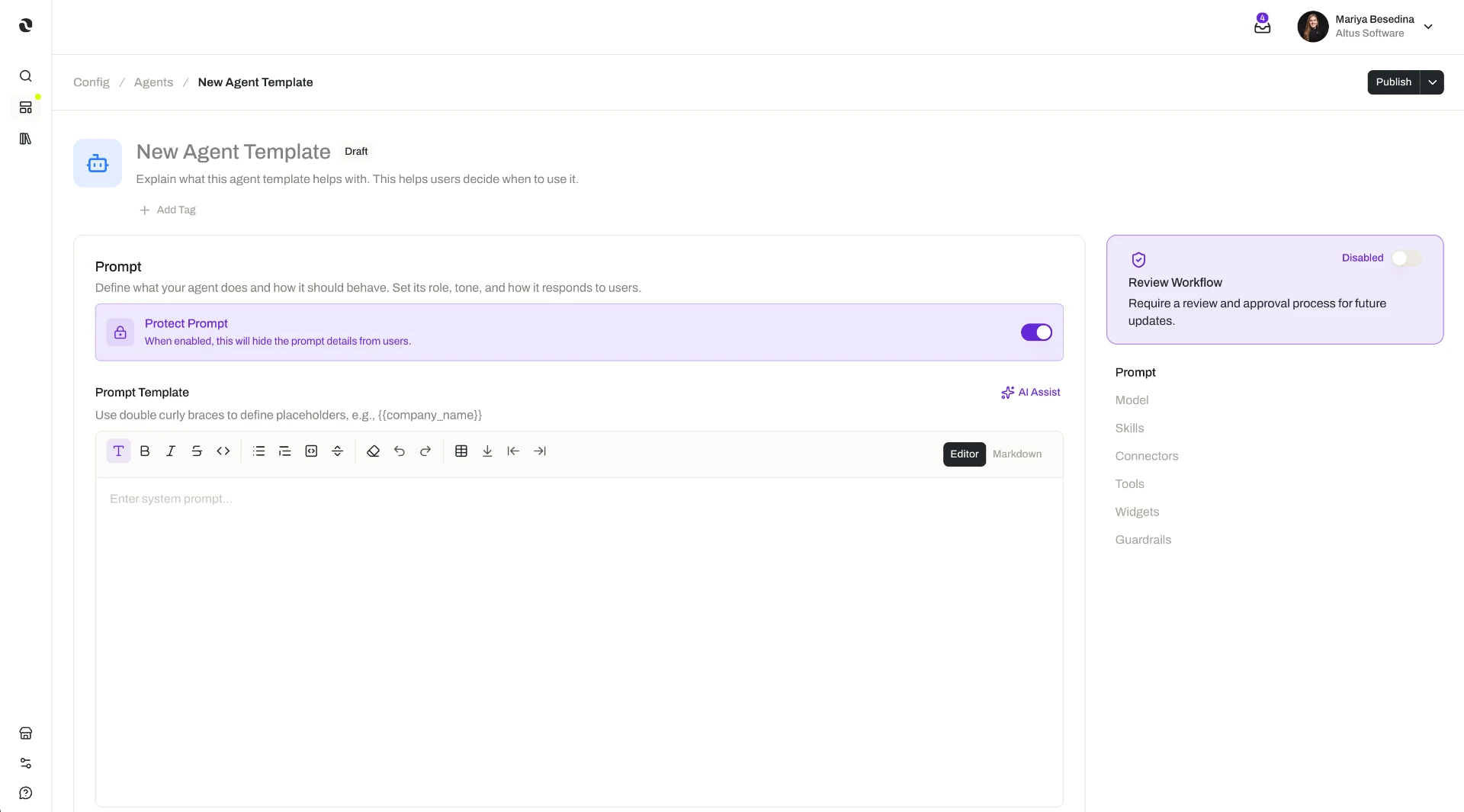
1. An author defines the template. A template is built from the same elements that make up an agent: a prompt, a model or model config, and capabilities such as skills, connectors, tool definitions, widgets, and guardrails.
- The prompt, with placeholders for what varies. The author writes
{{ placeholders }}for the parts that should change from one agent to the next — a client name, a product line, a team's escalation rules — and gives each placeholder a description, so the person creating the agent knows what to enter. Everything outside the placeholders stays the same in every agent created from the template, which is what makes the results consistent. - The model. The template sets the model that powers agents created from it, either as a language model with its parameters set or as a model config. See Models.
- The capabilities the work calls for. A template can include skills, connectors (as MCP Servers), tool definitions, widgets, and input and output guardrails — the same building blocks used on an individual agent. See Skills, Connectors, Tools, Widgets, and Guardrails.
- A fallback note where access might be missing. For skills, connectors, tool definitions, widgets, and guardrails, the author can add a fallback note that appears if someone does not have access to the underlying resource — the place to say what that person should do or request instead.
- Protection for anything that should stay private. If the author would rather not expose certain details, they can protect the prompt and the language model parameters so those stay hidden, while the template remains usable by everyone else.
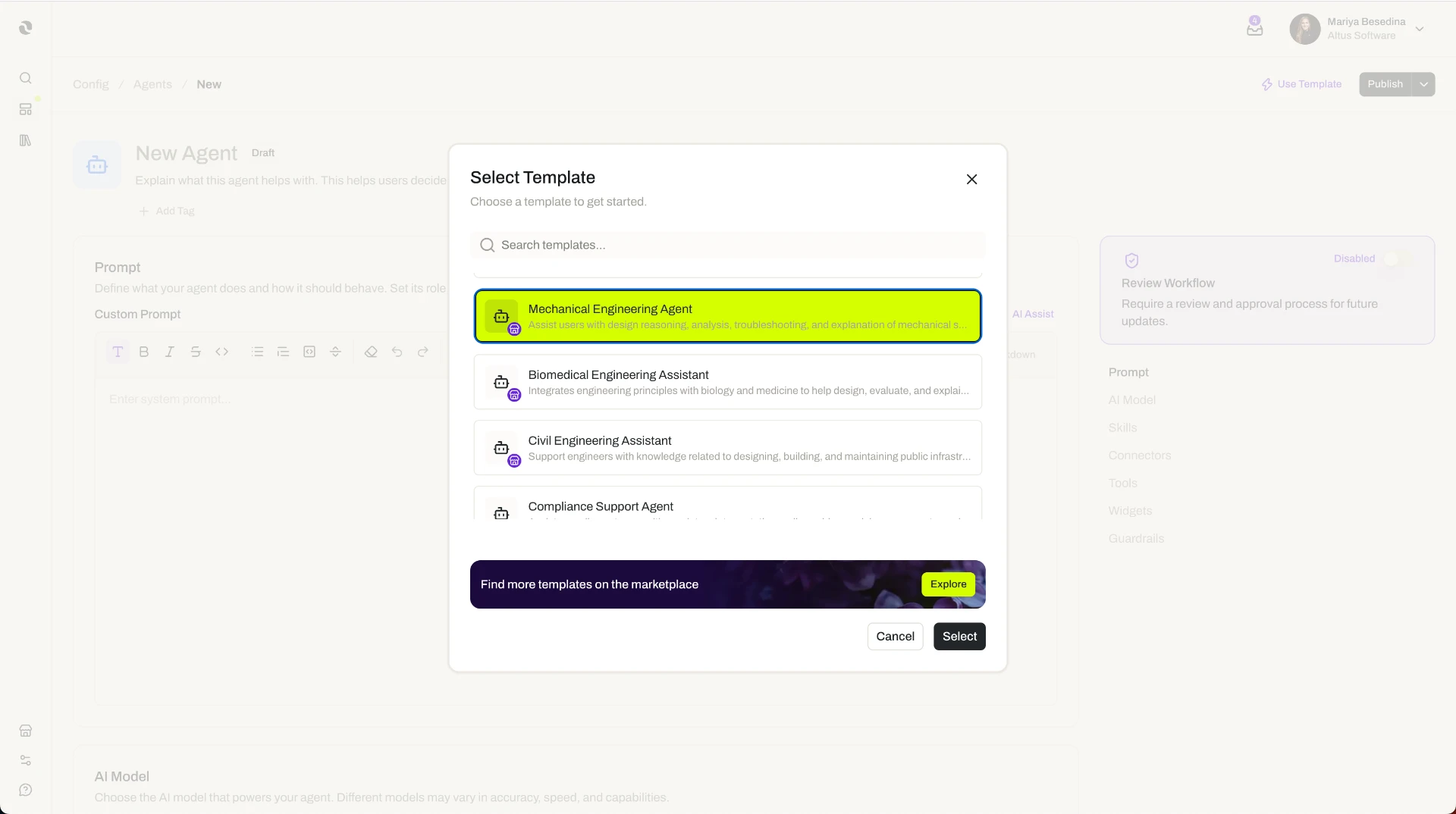
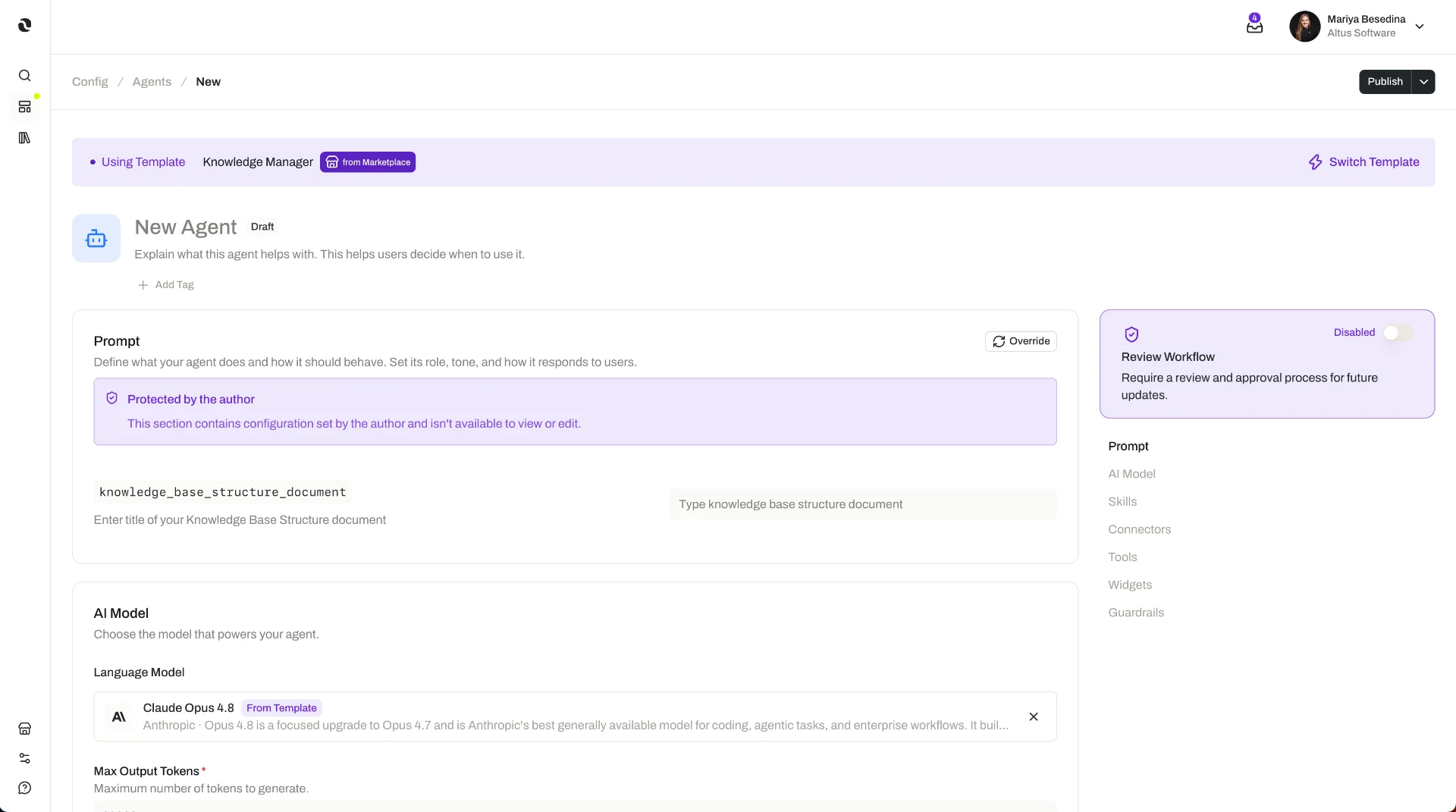
2. Someone creates an agent from the template. When creating an agent, a person can choose to start from a template instead of from scratch. The template pre-fills the configuration, and any component of it can be overridden.
- Fill in the placeholders. The author's descriptions explain what each one needs. If the prompt is not protected, the creator sees the full prompt with their values filled in; if it is protected, they supply the values without seeing the prompt itself.
- Supply the access the template asks for. For a connector, they select their own MCP Connection based on the template's MCP Server. For a tool, they select a tool created from the template's tool definition.
- Adjust and add. Skills, connectors, tools, widgets, and guardrails are optional, so the creator can leave out what they do not need — and can add their own on top of what the template includes.
3. Each agent stays linked to its template. When a template is updated, the agents created from it do not change automatically. Instead, each agent can be synced with the template's latest updates when its owner is ready — so improvements spread through the organization without anything shifting underneath someone mid-work.
Additional Notes
- Templates are organization-wide. A template is built once and available across the organization, rather than belonging to a single space or team.
- Overriding does not break the link. An agent that departs from its template in places is still linked to it, so one template can serve many variations while preserving a common baseline.
- Templates are governed like other resources. They carry the platform's standard governance controls: version control, permissions, a publishing workflow, linked resources, and an activity log. See Access & Permissions.
- Protecting the prompt is what makes wide sharing comfortable. It lets an author distribute a template for reuse without exposing prompt design or configuration details they would rather keep private.
- Fallback notes prevent a dead end. A person who cannot see an included resource gets the author's explanation at the moment they need it, instead of an unexplained gap in the configuration.
- The same idea applies to tasks and flows. See Task Templates and Flow Templates.
- Short definitions of the terms used here are in one place: Glossary.
{{ client_name }} and {{ project_scope }}, a model config suited to coordination work, the skills and connectors a coordinator needs, and an output guardrail that masks sensitive client data. From that one blueprint, the agency creates a Project Coordinator agent for each client — filling in that client's details through the placeholders while the underlying approach stays identical across every engagement. Later, when the agency refines how it runs coordination and updates the template, it syncs each client's agent to the latest version on its own schedule, without rebuilding any of them.Related Features
- Agents — What an agent is and how one is assembled; an agent created from a template inherits the template's prompt, model, and capabilities, stays linked to it, and can then be customized. Agents
- Models — The model that powers agents created from a template, set either as a language model with its parameters or as a model config. Models
- Skills — Packaged expertise a template can include, so agents created from it start with the same method. Skills
- Connectors — A template includes a connector as an MCP Server; the person creating the agent selects their own MCP Connection from it. Connectors
- Tools — A template includes a tool definition; the person creating the agent selects a tool created from that definition. Tools
- Widgets — Interactive interface elements a template can include, which agents created from it present within a thread. Widgets
- Guardrails — Input and output guardrails built into a template, so agents created from it start with the same safeguards. Guardrails
- Task Templates — The same blueprint model applied to tasks. Task Templates
- Flow Templates — The same blueprint model applied to flows. Flow Templates
- Access & Permissions — The full access model behind plans, role permissions, and per-resource permissions. Access & Permissions